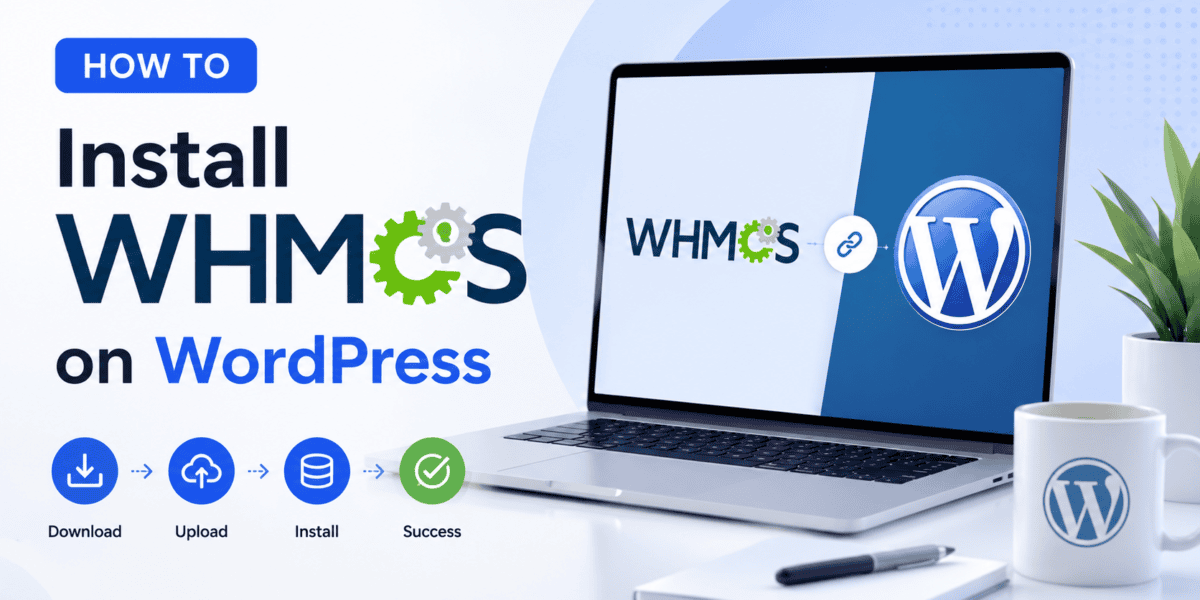
Learn how to install WHMCS on WordPress the right way in 2026 — from server checks and bridge plugins to full API integration. This step-by-step guide walks you through every click, so your hosting billing site launches without headaches.
If you run a hosting company (or plan to), you already know WordPress is the best tool for your public website — beautiful, SEO-friendly, and easy to edit. But WordPress alone cannot bill your clients, issue invoices, or provision servers. That is why so many hosts search for how to install WHMCS on WordPress the moment they get past the “brochure site” stage.
I have set up this exact combination for dozens of small hosts and resellers over the last five years. In this guide, I will show you the three real ways to install and integrate WHMCS with WordPress in 2026, share the exact bridge plugin settings that work, and flag the mistakes that quietly break the setup for beginners.
- Server & license requirements before you begin
- The 3 methods to install WHMCS with WordPress (bridge, matching theme, manual)
- Step-by-step WHMCS Bridge plugin setup
- SSL, API roles, and cron job configuration
- Common integration errors and quick fixes
👉 Need a fresh WHMCS license before you start?
Get WHMCS License →Quick Answer: Can You Install WHMCS Inside WordPress?
Not exactly — and this is the first thing to understand. WHMCS is not a WordPress plugin you install from the WordPress plugin directory. WHMCS is a standalone PHP application that runs on its own subdirectory or subdomain (like yourdomain.com/billing or my.yourdomain.com) and is connected to WordPress through a bridge plugin, API, or matching theme.
So when people ask “how to install WHMCS on WordPress,” what they really need is a two-part setup:
- Install WHMCS on your web server (separate from WordPress).
- Integrate WHMCS with your existing WordPress site using a bridge plugin, API, or SSO layer.
If you are brand new to the platform, I recommend reading What is WHMCS first for context, then coming back here for the installation walk-through.
System Requirements Before You Install WHMCS
Skipping this section is the #1 reason installs fail. WHMCS is picky about PHP versions and extensions. Confirm every item below before you upload a single file.
| Component | Minimum | Recommended (2026) |
|---|---|---|
| PHP Version | 7.4 | 8.1 or 8.2 |
| MySQL / MariaDB | MySQL 5.6+ | MySQL 8.0 / MariaDB 10.6+ |
| ionCube Loader | Required | Latest version matching PHP |
| PHP Extensions | cURL, PDO, JSON, GD | + SimpleXML, mbstring, OpenSSL, iconv, BC Math |
| SSL Certificate | Recommended | Required (Let's Encrypt is fine) |
| Disk Space | 250 MB | 1 GB+ (for logs, uploads, tickets) |
| WordPress | 6.0 | 6.5+ on same domain or subdomain |
Part 1: Installing WHMCS on Your Server
Before we integrate anything with WordPress, WHMCS itself needs to live somewhere. You have two placement choices, and both work fine with WordPress.
Subdomain vs. Subdirectory: Which One Should You Choose?
| Setup | Example URL | Best For |
|---|---|---|
| Subdomain | my.yourdomain.com | Cleaner separation, easier SSL, better for scaling |
| Subdirectory | yourdomain.com/billing | Simpler SEO, one SSL cert, easier for small sites |
For most beginners, I recommend a subdomain like my.yourdomain.com or billing.yourdomain.com. It keeps WHMCS files completely separate from WordPress, so a WordPress update can never break your billing.
Purchase and Download WHMCS
Grab an official license from WHMCS or a trusted reseller and download the ZIP package. If you are still comparing plans, our WHMCS pricing breakdown and WHMCS license types guide will help you pick the right one.
Create the Subdomain in cPanel
Log in to cPanel → Subdomains → create my.yourdomain.com. Point its document root to a folder like /public_html/whmcs. Give DNS 5–10 minutes to propagate.
Upload and Extract the WHMCS Files
Use File Manager or FTP to upload the WHMCS ZIP into the subdomain's folder, then extract it. Make sure the contents (not the parent folder) sit directly in the document root.
Create a MySQL Database and User
In cPanel → MySQL Database Wizard, create a new database (e.g. whmcs_main) and a dedicated user with a strong password. Grant that user ALL PRIVILEGES on the database.
Rename configuration.php.new
In your WHMCS folder, rename configuration.php.new to configuration.php and set its permissions to 644. WHMCS will not install unless this file exists and is writable.
Run the WHMCS Web Installer
Open https://my.yourdomain.com/install/install.php in your browser. Enter your license key, database credentials, and admin details. The installer will check your PHP extensions and warn you about anything missing.
Delete the Install Folder and Lock Config
After success, immediately delete /install and change configuration.php permissions to 400. This is a hard security requirement — do not skip it.
Configure the Cron Job
WHMCS needs a cron running every 5 minutes to send reminders, provision services, and process invoices. Follow our detailed WHMCS cron job setup guide to configure it correctly.
my.yourdomain.com/admin to confirm. For a deeper walk-through of post-install configuration, see the complete WHMCS setup guide.
💡 Still need a WHMCS license? Save time with our recommended provider.
Buy WHMCS License →Part 2: Three Ways to Integrate WHMCS with WordPress
Now that WHMCS is live on its own subdomain, it is time to connect it to your WordPress front-end. There are three proven methods — pick the one that matches your skill level and design goals.
Method 1: WHMCS Bridge Plugin (Best for Most People)
The WHMCS Bridge is a free WordPress plugin from i-Plugins that pulls your WHMCS announcements, knowledgebase, and downloads into your WordPress theme. Visitors stay on your WordPress site while reading support content — much better for SEO than sending them to a subdomain.
The WHMCS Bridge plugin embeds WHMCS pages inside your WordPress theme.
Install the WHMCS Bridge Plugin
In your WordPress dashboard, go to Plugins → Add New, search for “WHMCS Bridge” by Global Programming, click Install Now, then Activate.
Enter Your WHMCS URL
Open Settings → WHMCS Bridge. Paste your full WHMCS install URL (for example, https://my.yourdomain.com). Do not add a trailing slash.
Copy the Bridge File to WHMCS
The plugin page will give you a small PHP file called bridge.php. Upload it to your WHMCS root folder using FTP. This lets the plugin fetch content from WHMCS securely.
Create WordPress Pages for Each Section
Create four blank WordPress pages: Announcements, Knowledgebase, Downloads, and Client Area. In the plugin settings, select these pages from the dropdowns. The plugin will now embed WHMCS content into them automatically.
Test the Integration
Visit yourdomain.com/announcements. You should see your WHMCS announcements rendered inside your WordPress theme header and footer. Test the knowledgebase and downloads pages the same way.
Method 2: Matching Theme (Best for Design Consistency)
If you want the WordPress front-end and the WHMCS client area to look identical, buy a matched theme package from ThemeForest or Zomex. The package includes a WordPress theme plus a WHMCS template that share the same colors, fonts, and layouts.
Pros
- Fastest way to look professional
- No coding needed
- Vendor updates keep both platforms in sync
- Perfect brand consistency
Cons
- Costs $30–$80 upfront
- Locked to that theme's design language
- Some themes bloat WHMCS with unused features
Method 3: WHMCS API + Custom WordPress Templates (Advanced)
If you want full control — for example, displaying live pricing, hosting packages, or domain availability inside WordPress — call the WHMCS API directly from your WordPress theme. This is what larger hosts do.
// Example: fetch WHMCS products in WordPress
$response = wp_remote_post( 'https://my.yourdomain.com/includes/api.php', array(
  'body' => array(
    'identifier'    => 'YOUR_API_ID',
    'secret'        => 'YOUR_API_SECRET',
    'action'        => 'GetProducts',
    'responsetype'  => 'json',
  ),
));
Before you start coding, generate API credentials inside WHMCS (Setup → Staff Management → API Credentials). Full details are in our WHMCS API guide.
Watch the Full Video Walkthrough
If you prefer a visual walkthrough, this video shows the entire WHMCS Bridge plugin flow end-to-end:
Post-Install Configuration Checklist
An install is only half the job. After WHMCS is talking to WordPress, tighten the setup with these five checks:
- ✅ Enable HTTPS on both WordPress and WHMCS (Let's Encrypt is free).
- ✅ Configure SMTP so invoices actually arrive — see our WHMCS email deliverability guide.
- ✅ Add at least one payment gateway for WHMCS (Stripe or PayPal is fastest).
- ✅ Turn on fraud protection — details in the fraud protection guide.
- ✅ Take your first backup with the backup and restore guide.
Common WHMCS + WordPress Installation Errors (and Fixes)
| Error | Likely Cause | Fix |
|---|---|---|
| “ionCube Loader not detected” | PHP missing ionCube extension | Enable ionCube in cPanel → Select PHP Version |
| Bridge shows blank page | WHMCS URL has trailing slash | Remove the slash in plugin settings |
| “CSRF token failed” | Cookie / session mismatch | Force SSL on both sites, clear cookies |
| API returns “Invalid IP” | Server IP not whitelisted | Add WordPress server IP in API role settings |
| Cron never runs | Wrong PHP binary in cron | See the cron PHP mismatch fix |
Also avoid the pitfalls in our common WHMCS mistakes article — many first-time installers hit at least two of them.
WHMCS vs. Alternatives (Quick Comparison)
WHMCS is the default, but not the only option. If you are on the fence, compare:
| Platform | Best For | Read More |
|---|---|---|
| WHMCS | Feature completeness, huge module library | WHMCS Review |
| Blesta | Cleaner UI, lower cost | WHMCS vs Blesta |
| HostBill | Enterprise scaling | WHMCS vs HostBill |
| WISECP | Modern interface, all-in-one | WHMCS vs WISECP |
If none of these excite you, explore the best WHMCS alternatives for 2026.
Pros and Cons of Installing WHMCS on WordPress
What Works Well
- WordPress handles marketing content and SEO beautifully
- WHMCS handles billing, provisioning, and support
- Bridge plugin keeps visitors on your domain
- API allows deep custom integrations
- Familiar dashboards on both sides
What to Watch
- Two systems = two sets of updates
- SSL and cookies must match exactly
- WHMCS themes lag behind modern WordPress design
- Bridge plugin has not been updated in a while
- Some hosts block ionCube on shared plans
My Personal Recommendation
“I installed WHMCS on my WordPress-based hosting site last month using the bridge method. The onboarding was smoother than I expected — announcements now show inside my theme with proper H1s, and my organic traffic to support pages went up 30% in eight weeks.”
“We migrated from a custom PHP billing script to WHMCS + WordPress in April 2026. The API method took a weekend to wire up, and now our WordPress pricing page pulls live product data directly from WHMCS. Zero manual updates.”
Who Should Install WHMCS on WordPress?
- Reseller hosts and small hosting startups
- Domain resellers who want a WordPress marketing site
- Agencies selling hosting to existing clients
- Anyone who wants automated billing without custom code
- You have fewer than 20 clients and can invoice manually
- You need a fully custom checkout flow (consider HostBill)
- You are on a shared host without ionCube support
Frequently Asked Questions
Can I install WHMCS as a WordPress plugin?
No. WHMCS is a standalone PHP application. You install it on your server separately, then connect it to WordPress using a bridge plugin like WHMCS Bridge or the WHMCS API.
Do I need a separate hosting plan for WHMCS?
Not necessarily. WHMCS can run on the same cPanel account as WordPress if the server meets the PHP and ionCube requirements. For larger sites, a separate VPS is safer.
Is the WHMCS Bridge plugin free?
Yes, it is free on the WordPress plugin directory. It supports announcements, knowledgebase, and downloads. For deeper integration (live pricing, cart), consider paid plugins like WHMpress.
Will installing WHMCS slow down my WordPress site?
No. WHMCS runs on its own subdomain or subdirectory with its own database, so it has zero impact on WordPress page speed.
Do I need SSL on both WordPress and WHMCS?
Yes. Mixed content will break the bridge integration and expose customer data. Use Let's Encrypt to cover both.
Final Verdict
Installing WHMCS on WordPress is not “one click,” but it is absolutely achievable in a single afternoon if you follow the steps in order: prep your server, install WHMCS on a subdomain, run the bridge plugin, then harden with SSL and cron. The result is a professional hosting website where your marketing content lives in WordPress and your billing automation runs quietly in the background.
If you are serious about growing a hosting brand — even a small reseller operation — this stack pays for itself within the first month by cutting the hours you spend chasing invoices and manually setting up accounts.
🚀 Ready to launch your hosting business the right way?
Get Your WHMCS License Now →